
A few weeks ago, we wrote about the presence of sensitive information in your university spaces (Google Drive, Gmail, OneDrive), and we mentioned that these items need to be remediated within BigID upon receipt of an email from bigid-remediation@umd.edu. However, we didn’t dive deep into it, which may have even left you very confused and wondering: how am I supposed to actually do the remediation? This topic of the week is going to cover everything you need to know about remediating your sensitive data using BigID.
Lets back up: how to know if you have things to remediate
- Insight and background: The SPARCS team uses BigID, a data discovery tool, to search specifically for Social Security Numbers, credit card numbers, and passport numbers within defined spaces. The current spaces we are exploring are Google Drive, Gmail, and OneDrive. The accounts that are reviewed are all active university faculty and staff accounts.
- Why? These spaces that are scanned are not permitted to store level 3 (high risk) data (remember, level 3 data includes Social Security Numbers, credit card numbers, and passport numbers!)
- Ok, now how do I know if I have flagged items? If BigID has flagged your files as containing sensitive information, you will receive an email from bigid-remediation@umd.edu. This email will include a link to BigID where you will authenticate using the university's Central Authentication Service (CAS) to review your list of items for remediation.
- What do you mean by remediation? When we say remediation, we are looking for the files to be deleted from where they are and placed in appropriate spaces. For example, a file with sensitive information is not permitted to be stored in Google Drive, but it is permitted to be stored in Box. The file should be deleted from Google Drive, and kept in Box if you still have a need for storing that file.
How to remediate your flagged files using BigID
Now that you have some background knowledge, let's go over how to use BigID to resolve these flagged items. Once you have received a BigID email from SPARCS, you will click the link within the email and authenticate through UMD CAS to access BigID.
Within BigID, you will be taken directly to your personal remediation dashboard. This dashboard shows you all items that are assigned to you for remediation. Below is an example of what the dashboard looks like. 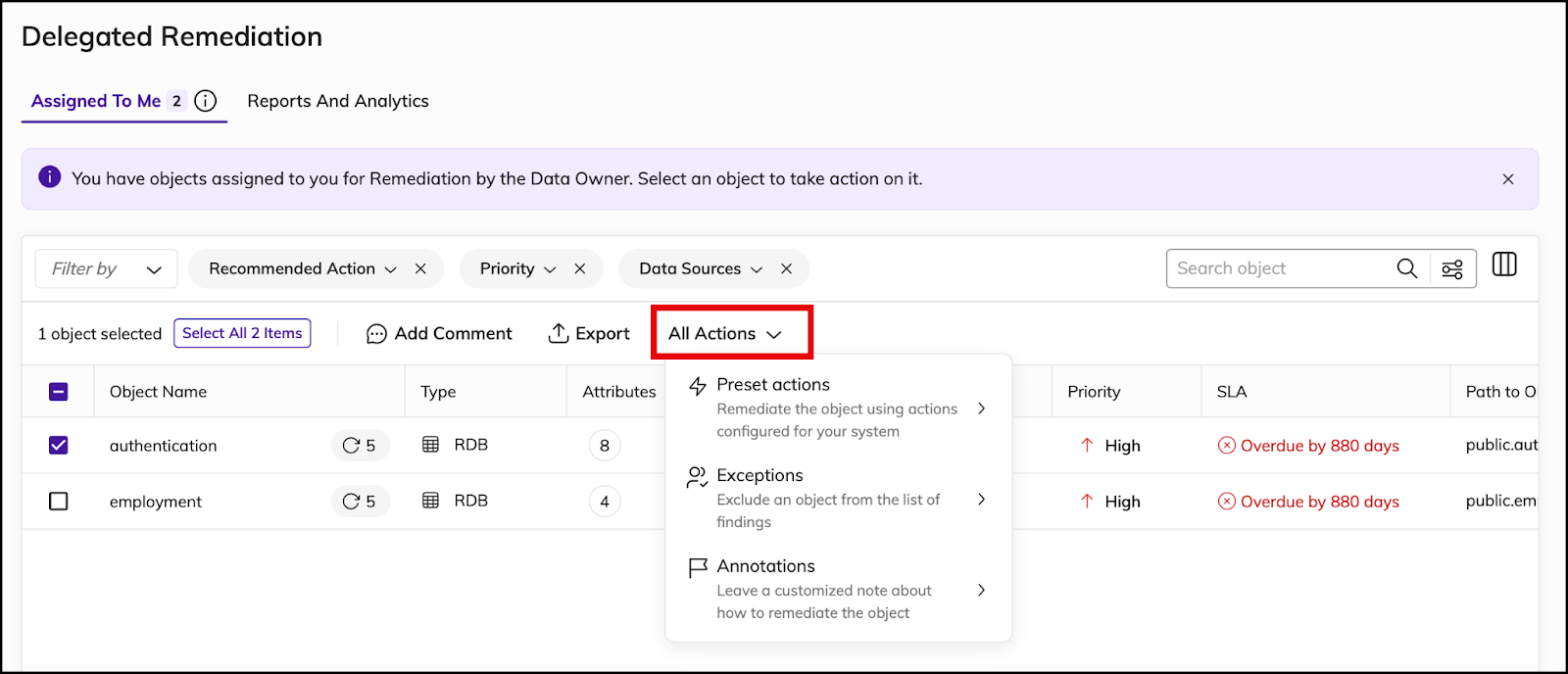
Start by reviewing the assigned objects. This is done by clicking on the object name, which opens a detailed view of the flagged item, including the details associated with it, like object type, full file name, scanned date, and more. The upper right corner of this view also includes an Actions button, which contains the same user options as the "All Actions" button on the dashboard highlighted above. (Additional details about the actions are below.) 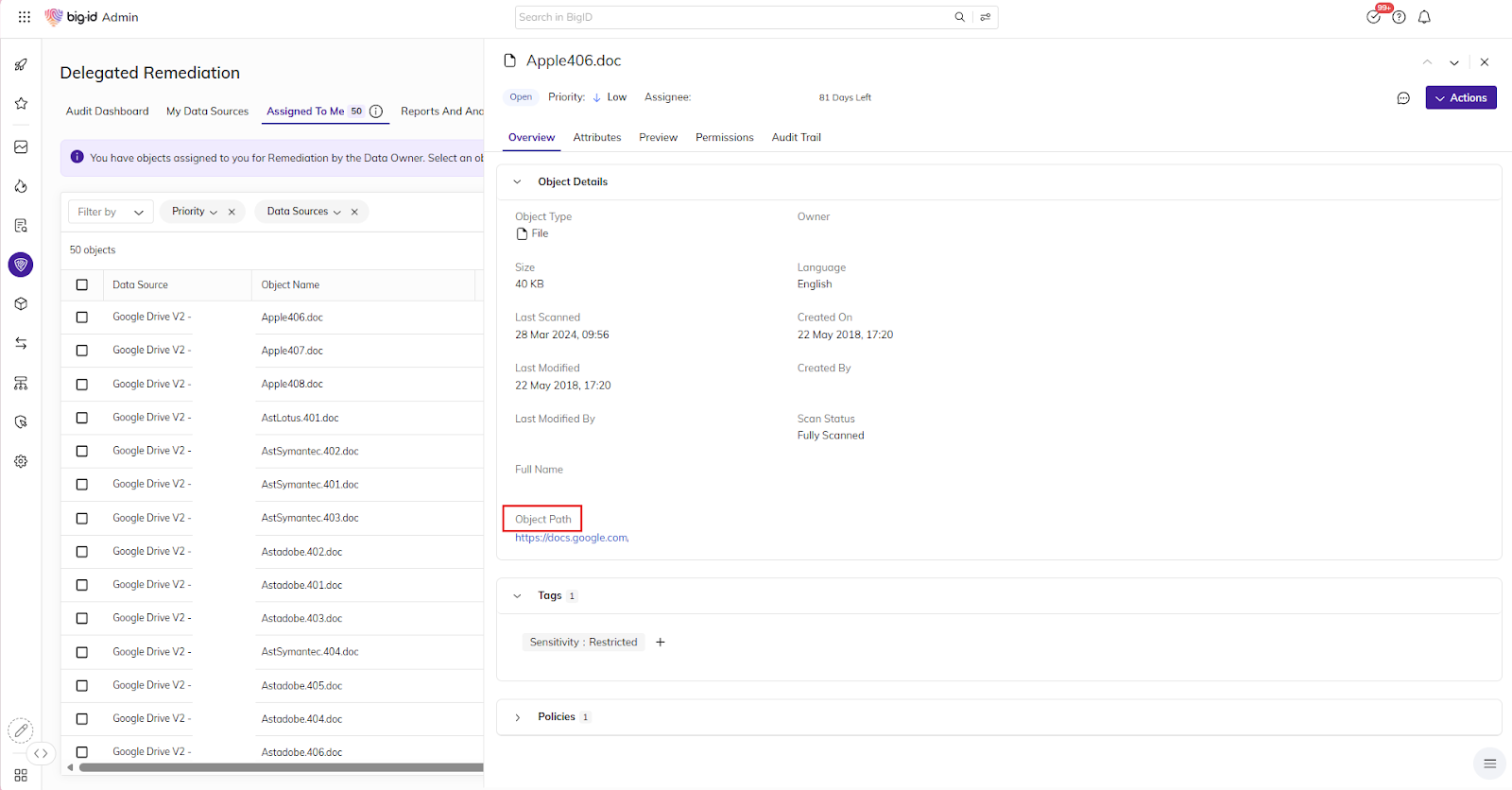
Navigate to the actual flagged item by using the link under "Object Path" and review it to see if it actually includes sensitive data.
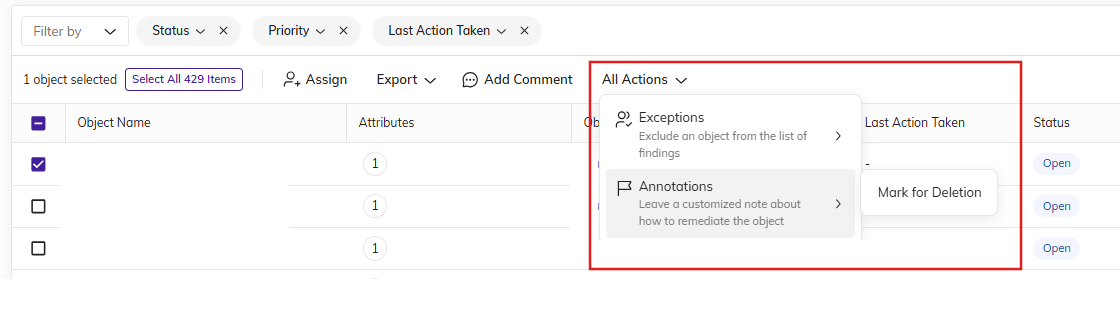
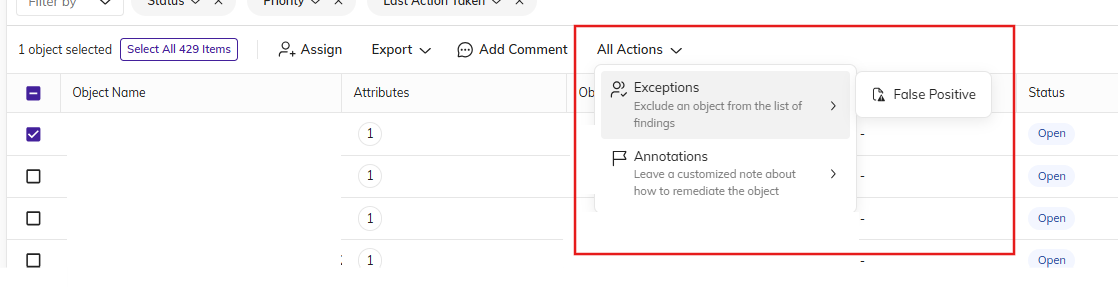
After viewing what was flagged, you will then have to perform an action on each flagged item. To do this, you will first select the flagged item, then you will hit “All Actions” or "Actions" (depending on which view you are using) and select the appropriate response. There are two options:
- Mark for Deletion - you will only select this AFTER you successfully delete the file from the space it was flagged in. To choose this option, hover your cursor over Annotations and then select “Mark for Deletion.”
- False Positive - you will only select this option if the flagged file does not contain sensitive data. Mistakes happen, and a U ID number can sometimes be flagged as an SSN (as well as other incorrect flags for credit card numbers or passport numbers). *If you have a false positive, it is important that you leave a note explaining why it is marked as such. To choose this option, hover your cursor over “Exceptions” and then select “False Positive.”
Now that we have covered what the process is for identifying sensitive data and how to fix it using BigID, you are prepared to clean up your university spaces--if needed! For any questions regarding this process, please reach out to sparcs@umd.edu and copy bmarti12@umd.edu.